Get notifications on your phone
Choose what Ownstay tells you about, and turn notifications on for each device.
Choose what you hear about
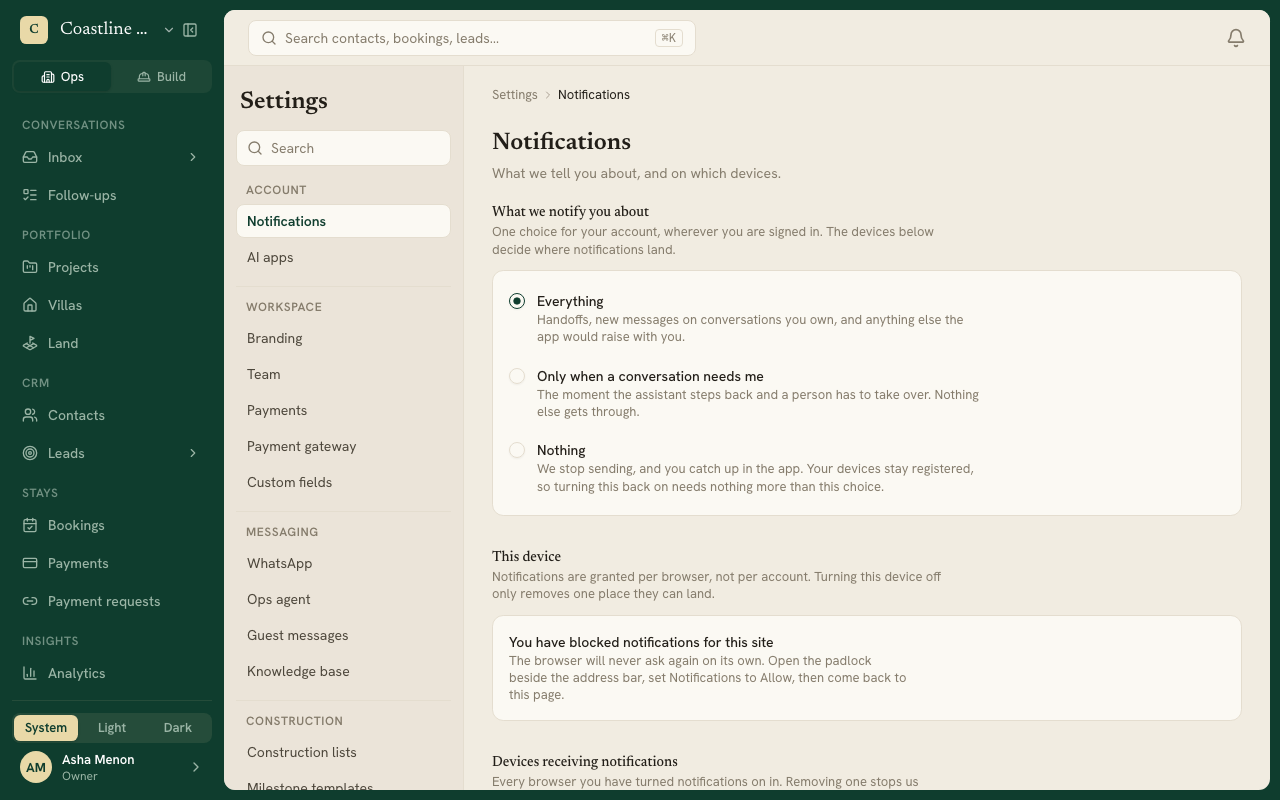
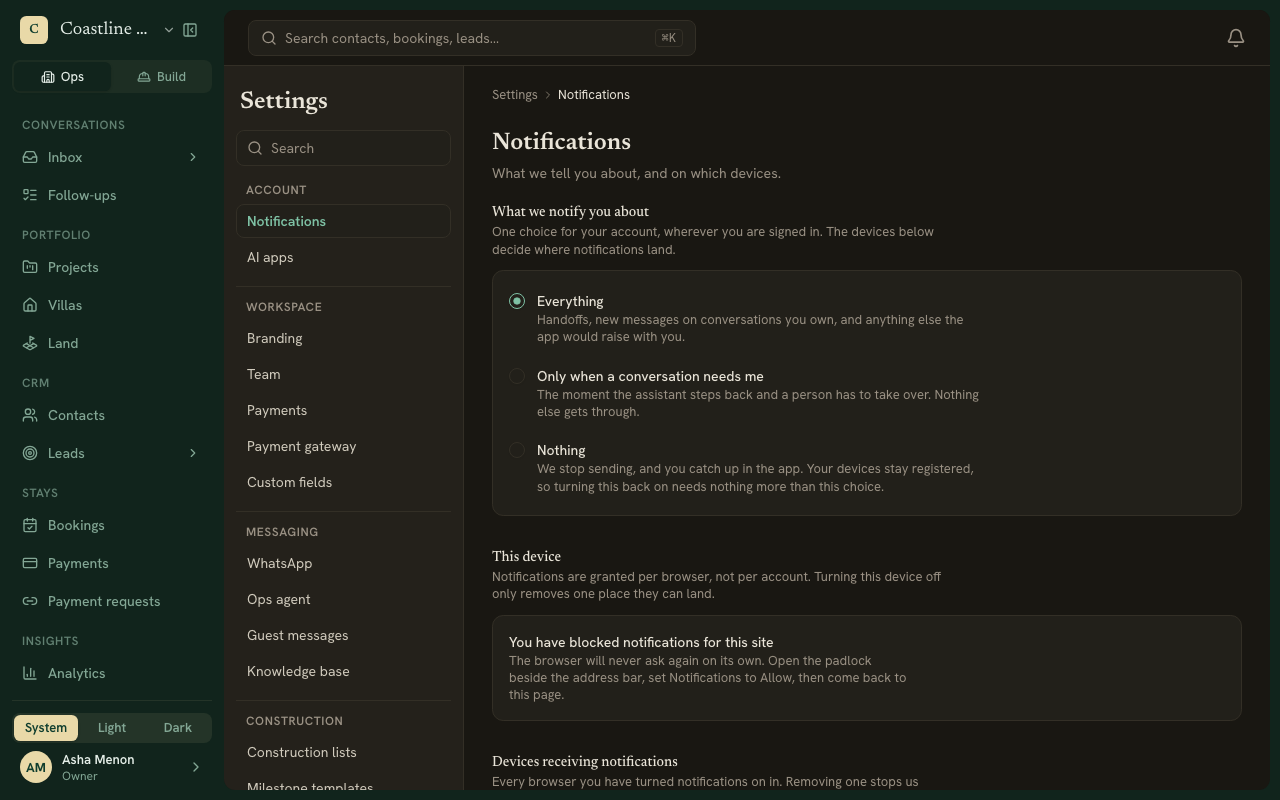
Go to Settings, then Notifications. Under What we notify you about, choose:
- Everything: handoffs, new messages on conversations you own, and anything else the app would raise with you.
- Only when a conversation needs me: only the moment the assistant steps back and a person has to take over.
- Nothing: you catch up in the app instead.
This choice is for your account, wherever you are signed in.
Turn notifications on for a device
Notifications are turned on per browser. On each phone or computer you use, open Settings, then Notifications, and press Turn on under This device.
On an iPhone or iPad
An iPhone only notifies you from an app on the Home Screen, so add Ownstay there first.
In Safari, tap Share in the toolbar.
Choose Add to Home Screen, then Add.
Open Ownstay from the new icon, go to Settings, then Notifications, and tap Turn on.
If you blocked notifications
Open the padlock beside the address bar, set Notifications to Allow, and come back to the page.
Stop a device
Under Devices receiving notifications, press Remove device.